Phone displays have notably advanced—growing larger, clearer, and brighter—but they might not always be the best choice for prolonged reading sessions. For longer texts, you could opt for a Kindle or a conventional physical book.
Nonetheless, you can modify your screen settings on your iPhone or Android device to boost readability. These adjustments can assist in reducing eye strain and cutting down on screen clutter, making reading more pleasurable. Although it won’t convert your phone into a full-fledged e-reader, it can bring you closer to that experience.
**Adjust the Display Settings**
You wield more influence over your phone’s font sizes, styles, and colors than you might realize, enabling you to enhance text readability with just a few taps in the main Settings menu.
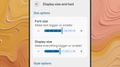
For Android devices, the menu labels may differ, but on Pixel phones, navigate to **Display size and text**. You can modify text size, boldness, and the dimensions of on-screen elements, plus there’s a **Dark theme** option to help ease eye strain.
On iOS, head to **Display & Brightness** in the Settings. Here, you can adjust the **Text Size** slider and enable **Bold Text**. Additionally, a dark mode option is available via the theme selector at the top of the screen—select **Dark** to dim the iOS interface colors.
Both Android and iOS come equipped with a night reading mode that diminishes blue light and warms the display, improving the reading experience. On Android Pixel phones, select **Display and touch > Night Light** from Settings, and on iOS, go to **Display & Brightness > Night Shift**. You can activate these features manually or on a schedule.
**Utilize Your Browser’s Reading Mode**
A large portion of reading on your phone occurs via web browsers, and most contemporary browsers provide a distinct reading mode. These modes declutter the screen, simplify colors, and highlight article text.
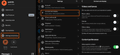
If Google Chrome is your default browser on Android, tap the three dots (top right) and select **Show Reading mode** for the current article. Swipe up on the panel at the bottom to change font and color options. To return to the standard view, tap the reading mode icon (next to the address bar).